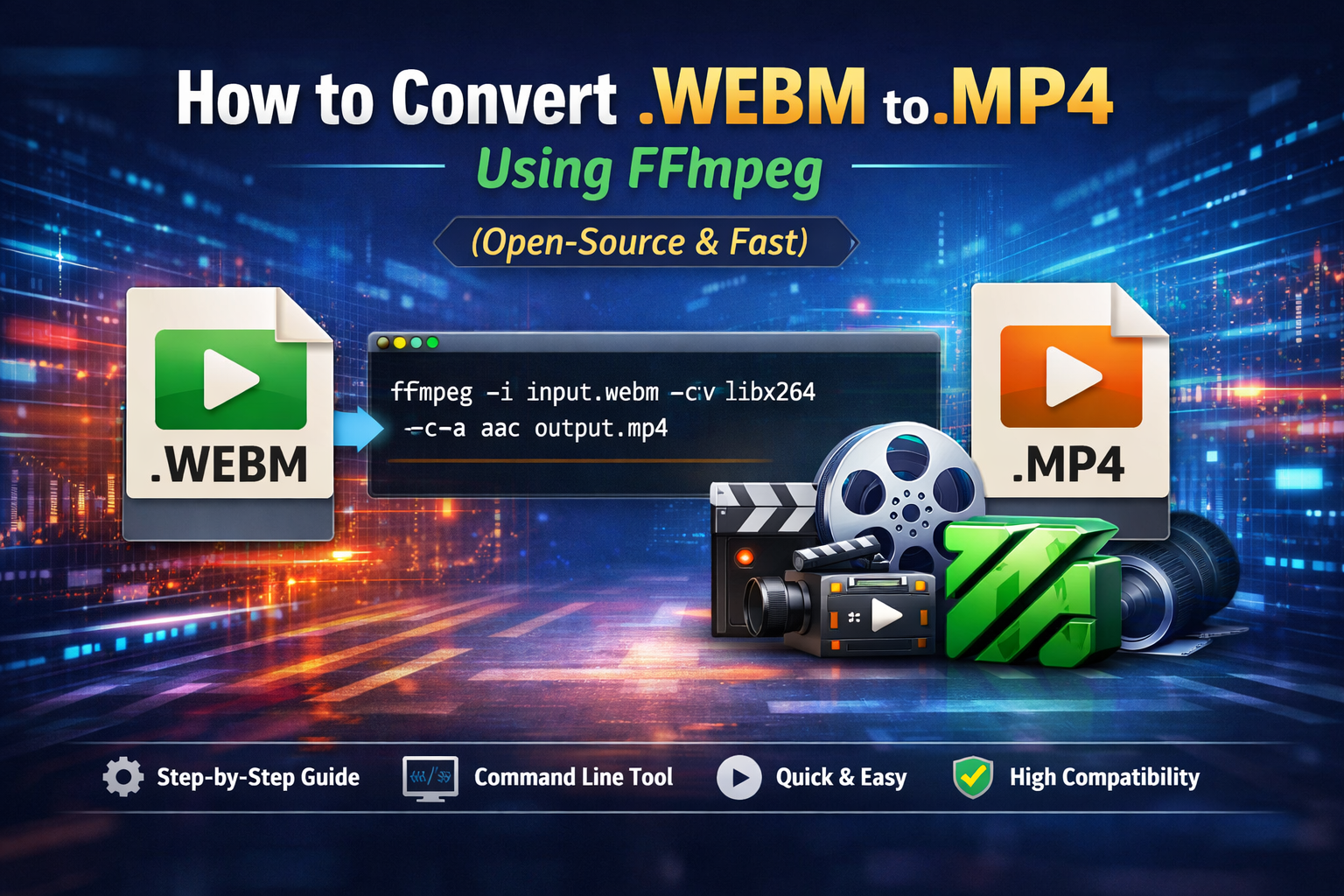
How to Convert .WEBM to .MP4 Using FFmpeg (Open-Source & Fast)
In today’s digital ecosystem, video formats play a crucial role in performance, compatibility, and user experience. While WEBM is widely used for web streaming due to its compression efficiency, MP4 remains the most universally supported format across devices, platforms, and browsers.
If you’re working in software development, QA automation, IT training, or digital content creation, converting WEBM to MP4 is often essential.
In this guide, we’ll walk you through how to use FFmpeg, a powerful open-source tool, to perform this conversion quickly and efficiently.
🚀 What is FFmpeg?
FFmpeg is a free and open-source command-line tool used for:
- Video and audio conversion
- Streaming
- Recording
- Editing multimedia files
It’s widely used by developers, DevOps teams, and media professionals due to its flexibility and performance.
📦 Why Convert WEBM to MP4?
Here are a few practical reasons:
- ✅ Better compatibility (works on all devices and browsers)
- ✅ Easier integration into apps and websites
- ✅ Supported by most video editors and CMS platforms
- ✅ Preferred format for social media uploads
⚙️ Step 1: Install FFmpeg
🔹 Windows:
- Download from: https://ffmpeg.org/download.html
- Extract files
- Add the
binfolder to your system PATH
🔹 Mac:
brew install ffmpeg🔹 Linux:
sudo apt install ffmpeg🔄 Step 2: Convert WEBM to MP4
✅ Basic Command
ffmpeg -i input.webm output.mp4⚡ Step 3: Recommended High-Quality Conversion
For better quality and compatibility:
ffmpeg -i input.webm -c:v libx264 -c:a aac output.mp4🔍 Explanation:
-c:v libx264→ Converts video to H.264 (widely supported)-c:a aac→ Converts audio to AAC (standard for MP4)
🚀 Step 4: Optimize for Web (Optional)
ffmpeg -i input.webm -c:v libx264 -crf 23 -preset medium -c:a aac -b:a 128k output.mp4💡 Tips:
- Lower
crf= higher quality (18–28 is ideal range) presetcontrols speed vs compression
⚡ Batch Conversion (Multiple Files)
for f in *.webm; do ffmpeg -i "$f" "${f%.webm}.mp4"; done🧠 Use Cases in IT & Development
At Namastey Digital India, we often use FFmpeg for:
- 🎥 Processing training videos
- 🧪 QA automation for media testing
- 🌐 Optimizing assets for web applications
- 🔐 Security camera footage conversion (CCTV formats)
- 📦 Backend media pipelines in SaaS platforms
⚠️ Common Errors & Fixes
| Issue | Solution |
|---|---|
| No audio | Ensure -c:a aac is added |
| Large file size | Adjust -crf value |
| Slow conversion | Use -preset fast |
| Unsupported codec | Force H.264 using libx264 |
✅ Conclusion
FFmpeg is a must-have tool for anyone working in modern digital infrastructure. Converting WEBM to MP4 is just one of its many capabilities, but it’s an essential skill for ensuring cross-platform compatibility and performance.
Whether you're a developer, tester, or IT professional, mastering FFmpeg will significantly streamline your workflow.
If you found this guide helpful, stay tuned for more practical tech tutorials and insights!